
Rancher Multi-Cluster Management: From Zero to Production-Ready in One Day
Your team just inherited three Kubernetes clusters—one on EKS, one on bare metal, and a dev cluster someone spun up on their workstation. Each has its own kubectl context, its own authentication mechanism, and its own way of doing things. Sound familiar? This is exactly the chaos Rancher was built to tame.
The usual response is a growing collection of shell aliases, a kubeconfig file that’s becoming its own maintenance burden, and a spreadsheet tracking which cluster uses OIDC, which uses service accounts, and which one still has that hardcoded admin token from the initial setup. You’re context-switching between clusters constantly, second-guessing which environment you’re pointing at, and hoping nobody accidentally runs that destructive command against production instead of dev.
This isn’t a tooling problem you can alias your way out of. It’s an architectural gap. When you manage multiple clusters—especially heterogeneous ones spanning cloud providers and on-prem infrastructure—you need a control plane that treats multi-cluster as a first-class concept, not an afterthought bolted onto single-cluster tooling.
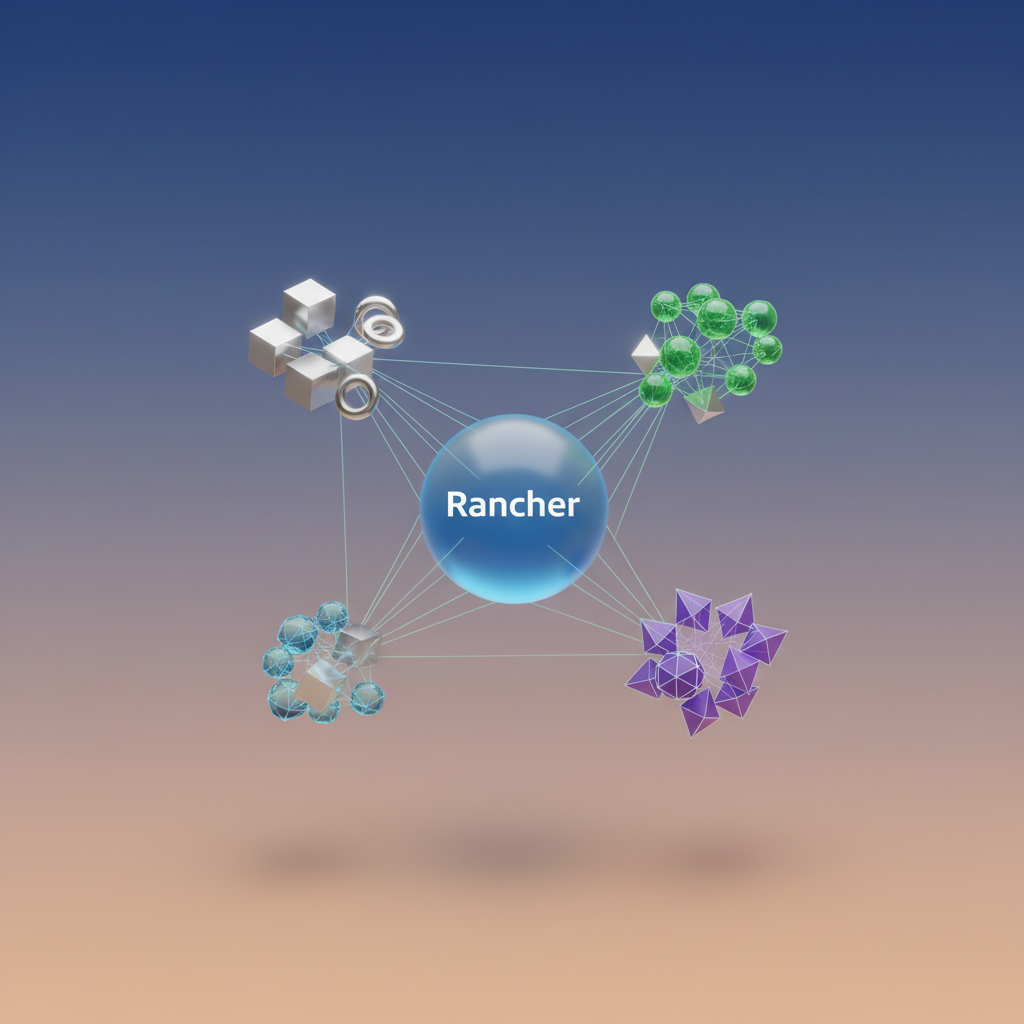
Rancher provides that abstraction layer. It’s a management platform that imports existing clusters regardless of where they run, normalizes authentication and RBAC across all of them, and gives you a single interface for deploying workloads, managing access, and maintaining visibility. Whether your clusters run on EKS, GKE, RKE2, or bare metal k3s installations, Rancher treats them as peers in a unified fleet.
This guide walks through deploying a production-ready Rancher installation in a single day—from initial setup through importing your first downstream clusters and establishing the foundational patterns you’ll build on as your infrastructure grows.
The Multi-Cluster Problem Rancher Actually Solves
Managing a single Kubernetes cluster is straightforward. You have one kubeconfig, one set of credentials, and one mental model. Add a second cluster for staging, and you’re still fine—a quick kubectl config use-context switches you between environments. But somewhere between clusters three and ten, this approach collapses.
The kubectl Context Trap
Context switching works until it doesn’t. Every platform team has a story about the engineer who ran kubectl delete namespace production against the wrong cluster because their terminal prompt didn’t update, or because they had the wrong context active in a different tab. The failure mode isn’t technical—it’s cognitive. Humans aren’t built to maintain mental state across a dozen cluster contexts while debugging at 2 AM.
Beyond the human factor, context-based management creates operational friction. Each cluster requires its own kubeconfig entry, its own credential refresh cycle, and its own authentication flow. When you’re managing EKS clusters with IAM, GKE clusters with Google OAuth, and on-prem clusters with OIDC, you’re juggling three different authentication paradigms before you’ve done any actual work.
The Hidden Costs of Heterogeneous Clusters
The authentication problem compounds across every operational dimension:
RBAC duplication. You define the same roles and bindings in each cluster, and they inevitably drift. The “read-only developer” role in production has slightly different permissions than in staging because someone made a quick fix six months ago.
Monitoring fragmentation. Each cluster runs its own Prometheus instance, its own alerting rules, and its own Grafana dashboards. Answering “what’s the CPU usage across all production clusters?” requires querying multiple systems and correlating the results manually.
Policy inconsistency. Security policies, network policies, and admission controllers vary between clusters. Auditing compliance means checking each cluster individually.
These costs remain invisible in your Kubernetes resource quotas but show up in engineer hours and incident response times.
How Rancher Abstracts the Chaos
Rancher operates as a centralized management plane that treats clusters as first-class resources. You import existing clusters—regardless of whether they’re EKS, GKE, AKS, or bare-metal RKE2—and manage them through a unified interface and API.
The architecture uses lightweight agents deployed into each downstream cluster. These agents establish outbound connections to the Rancher server, enabling management without exposing cluster API servers to the internet. Authentication flows through Rancher, meaning you configure SAML, LDAP, or GitHub once and apply it everywhere.
When Rancher Makes Sense
Rancher earns its complexity when you’re managing more than three clusters, need unified authentication across cloud providers, or want centralized visibility without building a custom platform. For teams running a single production cluster with minimal operational overhead, the additional layer adds cost without proportional benefit.
If your cluster count is growing and your operational overhead is growing faster, you’re in Rancher’s sweet spot. Let’s get it installed.
Installing Rancher: Docker vs. Helm on Kubernetes
Rancher offers two installation paths: a Docker-based deployment for evaluation and small teams, and a production-grade Helm installation on Kubernetes. Your choice depends on scale, reliability requirements, and operational maturity.
Docker Installation: Fast Path to Evaluation
The Docker installation runs Rancher as a single container, making it the fastest way to explore the platform. This approach works well for teams managing fewer than five clusters or running proof-of-concept deployments.
## Pull and run Rancher with persistent storagedocker run -d --restart=unless-stopped \  -p 80:80 -p 443:443 \  -v /opt/rancher:/var/lib/rancher \  --privileged \  rancher/rancher:v2.8.2
## Retrieve the bootstrap passworddocker logs $(docker ps -q --filter ancestor=rancher/rancher:v2.8.2) 2>&1 | grep "Bootstrap Password:"
The --privileged flag is required for Rancher to manage container networking. Mount /opt/rancher to persist cluster data across container restarts. Without this volume mount, you will lose all configuration, imported cluster connections, and user data if the container is removed or recreated.
💡 Pro Tip: For Docker installations behind a load balancer, add
-e CATTLE_TLS_MIN_VERSION="1.2"to enforce modern TLS standards.
This single-container deployment lacks high availability. If the host fails, your management plane goes down. For anything beyond evaluation, deploy Rancher on Kubernetes.
Helm Installation: Production-Grade Deployment
Running Rancher on a dedicated Kubernetes cluster provides high availability, rolling upgrades, and proper resource isolation. You need a cluster with at least 3 nodes, 4 CPU cores, and 8GB RAM per node for managing up to 50 downstream clusters. The Rancher management cluster should be separate from your workload clusters to ensure the control plane remains available even during downstream cluster incidents.
First, install cert-manager for certificate management:
## Add the Jetstack Helm repositoryhelm repo add jetstack https://charts.jetstack.iohelm repo update
## Install cert-manager with CRDskubectl create namespace cert-managerhelm install cert-manager jetstack/cert-manager \  --namespace cert-manager \  --version v1.14.3 \  --set installCRDs=true
Verify cert-manager is running before proceeding:
kubectl get pods -n cert-manager## Wait until all pods show Running statusThen deploy Rancher with your preferred certificate strategy:
## Add Rancher Helm repositoryhelm repo add rancher-stable https://releases.rancher.com/server-charts/stablehelm repo update
## Create the cattle-system namespacekubectl create namespace cattle-system
## Install with Let's Encrypt certificateshelm install rancher rancher-stable/rancher \ --namespace cattle-system \ --set hostname=rancher.platform.mycompany.io \ --set replicas=3 \ --set ingress.tls.source=letsEncrypt \ --set letsEncrypt.ingress.class=nginxThe Let’s Encrypt option automatically provisions and renews certificates, reducing operational overhead. However, it requires your Rancher hostname to be publicly resolvable and accessible on port 80 for HTTP-01 challenges.
For organizations with existing PKI infrastructure, bring your own certificates:
## Create TLS secret from your certificateskubectl -n cattle-system create secret tls tls-rancher-ingress \  --cert=tls.crt \  --key=tls.key
## Install with custom certificateshelm install rancher rancher-stable/rancher \  --namespace cattle-system \  --set hostname=rancher.platform.mycompany.io \  --set replicas=3 \  --set ingress.tls.source=secret \  --set privateCA=true
When using privateCA=true, Rancher expects the CA certificate to be available for downstream clusters to trust the management server. Create an additional secret containing your CA certificate if agents report TLS verification failures.
Resource Sizing by Cluster Count
Match your Rancher installation resources to the number of managed clusters:
| Downstream Clusters | Rancher Replicas | CPU per Replica | Memory per Replica |
|---|---|---|---|
| 1-15 | 3 | 2 cores | 4 GB |
| 15-50 | 3 | 4 cores | 8 GB |
| 50-100 | 3 | 8 cores | 16 GB |
| 100+ | 3 | 16 cores | 32 GB |
These recommendations assume typical cluster activity levels. Clusters running hundreds of workloads with frequent deployments may require additional resources. Monitor Rancher pod CPU and memory utilization during normal operations to validate your sizing.
Set explicit resource requests in your Helm values to ensure Kubernetes schedules Rancher pods appropriately:
helm install rancher rancher-stable/rancher \ --namespace cattle-system \ --set hostname=rancher.platform.mycompany.io \ --set replicas=3 \ --set ingress.tls.source=letsEncrypt \ --set resources.requests.cpu=4000m \ --set resources.requests.memory=8Gi \ --set resources.limits.cpu=8000m \ --set resources.limits.memory=16GiSetting both requests and limits prevents resource contention and protects against memory leaks affecting other workloads on the management cluster. The limits shown here provide headroom for traffic spikes during cluster provisioning operations.
With Rancher running, you can begin importing your existing Kubernetes clusters—whether they live in EKS, GKE, or your own data centers.
Importing Existing Clusters: EKS, GKE, and Bare Metal
Rancher’s real power emerges when you connect your existing Kubernetes clusters—whether they run on AWS, Google Cloud, or bare metal servers in your datacenter. The import process deploys lightweight agents that establish an outbound connection to Rancher, giving you unified visibility without modifying your existing workloads. This approach means you can bring clusters under Rancher management gradually, testing the integration on non-critical environments before rolling out to production.
Understanding the Cluster Agent Architecture
When you import a cluster, Rancher installs two components that work together to bridge your cluster and the management plane:
Cluster Agent: A single deployment that maintains a persistent WebSocket connection to the Rancher server. This agent handles cluster-level operations like deploying catalogs, managing RBAC, and synchronizing state. It serves as the primary communication channel, receiving instructions from Rancher and reporting cluster health and resource status back to the management server.
Node Agent: A DaemonSet running on every node that enables features like kubectl exec, log streaming, and node-level metrics collection. The node agent provides Rancher with direct access to each node’s capabilities, allowing operations that require node-specific context.
Both agents initiate outbound connections on port 443. Your clusters never need inbound access from Rancher—a critical detail for security-conscious environments. This outbound-only architecture means imported clusters can reside behind restrictive firewalls without requiring complex ingress rules or VPN configurations.
Importing an EKS Cluster
Start by configuring kubectl access to your EKS cluster:
aws eks update-kubeconfig --region us-east-1 --name production-eksIn the Rancher UI, navigate to Cluster Management → Import Existing → Generic. Rancher generates a kubectl command containing the agent deployment manifest. Run it against your EKS cluster:
kubectl apply -f https://rancher.example.com/v3/import/9vl8ptkbh7jhxz4wvbr6s5dwzqpkn4dzktpmvnlthqft.yamlThe import manifest creates the cattle-system namespace and deploys both agents. Within minutes, your cluster appears in the Rancher dashboard with full visibility into workloads, nodes, and resource utilization.
For EKS clusters, the default IAM configuration works out of the box. However, if you use IAM Roles for Service Accounts (IRSA), ensure the Rancher agents have sufficient permissions:
apiVersion: v1kind: ServiceAccountmetadata: name: cattle namespace: cattle-system annotations: eks.amazonaws.com/role-arn: arn:aws:iam::123456789012:role/RancherAgentRoleThe agent role requires minimal permissions—just the ability to communicate with the Rancher server and manage resources within its own namespace.
💡 Pro Tip: For GKE clusters, the process is identical. Google’s managed control plane handles all the networking automatically, making GKE imports straightforward. Ensure your GKE cluster’s network policy allows egress to your Rancher server URL.
On-Premises and Bare Metal Clusters
Importing clusters from your datacenter requires attention to network connectivity. The agents must reach your Rancher server on port 443, which means configuring egress rules in your firewall. Additionally, agents need access to container registries to pull their images during initial deployment and upgrades:
egress_rules:  - destination: rancher.example.com    port: 443    protocol: tcp
  - destination: docker.io    port: 443    protocol: tcp    note: "Required for pulling agent images"
  - destination: registry.rancher.com    port: 443    protocol: tcp
For air-gapped environments, you can mirror the required images to an internal registry and configure the import manifest to pull from your private registry instead of public sources.
For clusters running behind corporate proxies, configure the agents to use your proxy server:
kubectl -n cattle-system set env deployment/cattle-cluster-agent \ HTTP_PROXY=http://proxy.internal:3128 \ HTTPS_PROXY=http://proxy.internal:3128 \ NO_PROXY=localhost,127.0.0.1,10.0.0.0/8Remember to apply the same environment variables to the node agent DaemonSet if your nodes also require proxy configuration for outbound connectivity.
Clusters Behind NAT and Private Networks
Clusters in private subnets present a challenge: the agents can reach Rancher, but Rancher cannot reach the Kubernetes API directly. Rancher handles this through its agent tunnel architecture, which routes all management traffic through the established WebSocket connection.
When importing, select the Authorized Cluster Endpoint option and set it to disabled. All API traffic then flows through the cluster agent’s WebSocket tunnel:
apiVersion: management.cattle.io/v3kind: Clustermetadata: name: private-datacenterspec: agentEnvVars: - name: CATTLE_AGENT_TUNNEL value: "true" localClusterAuthEndpoint: enabled: falseThis configuration routes all kubectl commands through the agent tunnel, eliminating the need for direct API server access. Latency increases slightly—expect an additional 10-20ms—but you gain the ability to manage clusters that would otherwise be unreachable. For most operations, this added latency is imperceptible, though large-scale bulk operations may take marginally longer.
The tunnel architecture also provides a security benefit: your Kubernetes API server never needs public exposure. All management traffic traverses the encrypted WebSocket connection, reducing your attack surface while maintaining full operational capability through Rancher’s unified interface.
After importing your existing infrastructure, you likely want to provision new clusters directly through Rancher. RKE2, Rancher’s next-generation Kubernetes distribution, provides a streamlined path to creating production-grade clusters with sensible security defaults.
Provisioning New Clusters with RKE2
Rancher’s ability to provision new Kubernetes clusters directly from the UI transforms infrastructure-as-code from a complex pipeline into a declarative workflow. RKE2, the successor to RKE1, brings FIPS compliance and hardened defaults that make it the right choice for production workloads requiring stringent security guarantees.

Choosing Your Distribution
RKE2 (also called RKE Government) targets security-conscious deployments with SELinux enforcement, FIPS 140-2 compliance, and CIS benchmark alignment out of the box. RKE1 remains available for teams with existing clusters but receives only maintenance updates. K3s fits edge deployments and resource-constrained environments where the full RKE2 stack adds unnecessary overhead.
For multi-cluster management through Rancher, RKE2 provides the strongest foundation. Its embedded etcd eliminates external dependencies, and the binary distribution model simplifies air-gapped installations. Unlike RKE1’s Docker-based architecture, RKE2 runs Kubernetes components as static pods managed by the kubelet, reducing the attack surface and eliminating container runtime version conflicts.
Setting Up Cloud Credentials
Before provisioning nodes, configure cloud credentials in Rancher. Navigate to Cluster Management → Cloud Credentials and add your provider credentials. These credentials remain encrypted in Rancher’s database and get passed to the cluster provisioner without exposure in logs or UI. Rancher supports AWS, Azure, GCP, vSphere, and several other providers through its extensible credential system.
Node templates define the instance specifications Rancher uses when scaling clusters. Create templates that match your workload profiles:
apiVersion: provisioning.cattle.io/v1kind: NodeTemplatemetadata: name: production-worker namespace: fleet-defaultspec: cloudCredentialSecretName: aws-credentials amazonec2Config: ami: ami-0c55b159cbfafe1f0 instanceType: m5.xlarge region: us-east-1 securityGroup: - rancher-nodes subnetId: subnet-0a1b2c3d4e5f67890 volumeType: gp3 volumeSize: 100 zone: aMaintain separate templates for control plane and worker nodes. Control plane nodes benefit from faster storage and lower network latency, while worker nodes should match the resource profile of your application workloads.
Configuring Control Plane High Availability
Production clusters require three control plane nodes distributed across availability zones. This configuration tolerates the loss of a single node while maintaining etcd quorum. When creating a cluster in Rancher, specify the machine pools with appropriate counts:
apiVersion: provisioning.cattle.io/v1kind: Clustermetadata: name: production-west namespace: fleet-defaultspec: kubernetesVersion: v1.28.4+rke2r1 rkeConfig: machineGlobalConfig: cni: cilium secrets-encryption: true profile: cis-1.23 machinePools: - name: control-plane quantity: 3 etcdRole: true controlPlaneRole: true machineConfigRef: kind: Amazonec2Config name: production-control-plane - name: workers quantity: 5 workerRole: true machineConfigRef: kind: Amazonec2Config name: production-workerThe profile: cis-1.23 setting applies CIS Kubernetes Benchmark hardening automatically, configuring audit logging, pod security standards, and API server flags according to industry standards. This eliminates hours of manual configuration while ensuring compliance audits pass on first review.
CNI Selection and Network Hardening
RKE2 defaults to Canal (Calico + Flannel), but Cilium offers superior network policy enforcement and observability through eBPF. For clusters requiring strict network segmentation, Cilium’s identity-based policies simplify multi-tenant isolation without requiring IP-based rule management.
Enable encryption in transit by adding wireguard configuration:
rkeConfig: machineGlobalConfig: cni: cilium machineSelectorConfig: - config: cilium: encryption: enabled: true type: wireguardWireGuard encryption adds minimal latency while protecting pod-to-pod traffic from network-level interception. Combined with secrets encryption at rest, this configuration satisfies most regulatory requirements for data protection.
💡 Pro Tip: Enable secrets encryption before deploying any workloads. Retrofitting encryption on existing clusters requires re-encrypting every secret, which introduces significant operational risk.
Cluster Creation Workflow
From the Rancher UI, select Create → Custom for RKE2 clusters. The wizard guides you through node pool configuration, but the YAML editor provides full control. Export your cluster configuration as YAML and store it in version control—this becomes your source of truth for cluster rebuilds and disaster recovery.
Rancher provisions control plane nodes first, waiting for etcd quorum before adding workers. Monitor the provisioning progress in the cluster dashboard; a healthy three-node control plane typically completes in under ten minutes on major cloud providers. Failed provisioning attempts surface detailed error messages in the node events, pointing to common issues like insufficient IAM permissions or network connectivity problems.
With clusters provisioned, you need consistent access control across all of them. Rancher’s authentication connectors and RBAC policies provide exactly that capability.
Unified RBAC and Authentication Across Clusters
Managing access control across a fleet of Kubernetes clusters traditionally means maintaining separate RBAC configurations in each cluster, synchronizing role bindings manually, and hoping nothing drifts. Rancher eliminates this operational burden by providing a unified permission model that propagates consistently across every managed cluster from a single control plane.
Understanding Rancher’s Three-Tier Permission Model
Rancher implements a hierarchical RBAC system with three distinct scopes that work together to provide comprehensive access control:
Global Roles define what users can do across the entire Rancher installation—creating clusters, managing authentication providers, or accessing the Rancher API. These roles exist independently of any specific cluster and govern platform-wide capabilities. Common global roles include Administrator (full platform access), Standard User (can create new clusters and projects), and User-Base (minimal login-only access).
Cluster Roles control access within individual clusters. A user might have admin rights on development clusters but read-only access to production. Rancher ships with built-in roles (Cluster Owner, Cluster Member, Read-Only) and supports custom definitions for specialized access patterns. These roles translate directly to Kubernetes RBAC resources within each managed cluster, ensuring native enforcement.
Project Roles provide the finest granularity. Projects group namespaces within a cluster, letting you delegate access to specific workloads without exposing the entire cluster. A frontend team gets full access to their namespaces while the platform team retains cluster-wide visibility. This abstraction proves invaluable for multi-tenant clusters where isolation between teams is critical.
apiVersion: management.cattle.io/v3kind: RoleTemplatemetadata: name: namespace-admincontext: clusterrules: - apiGroups: [""] resources: ["namespaces", "pods", "services", "configmaps", "secrets"] verbs: ["*"] - apiGroups: ["apps"] resources: ["deployments", "statefulsets", "daemonsets"] verbs: ["*"] - apiGroups: ["networking.k8s.io"] resources: ["ingresses", "networkpolicies"] verbs: ["*"]Integrating External Authentication
Rancher supports LDAP, Active Directory, SAML 2.0, GitHub, Google OAuth, Okta, Keycloak, and several other identity providers. Configuration happens once at the global level and applies everywhere, eliminating the need to manage authentication separately for each cluster.
apiVersion: management.cattle.io/v3kind: AuthConfigmetadata: name: githubtype: githubConfigenabled: trueaccessMode: restrictedallowedPrincipalIds: - "github_org://acme-corp" - "github_team://acme-corp/platform-engineering"hostname: github.comclientId: "a1b2c3d4e5f6g7h8i9j0"clientSecret: "secret-from-github-oauth-app"After enabling GitHub authentication, map external identities to Rancher roles:
apiVersion: management.cattle.io/v3kind: GlobalRoleBindingmetadata: name: platform-team-adminglobalRoleName: admingroupPrincipalId: "github_team://acme-corp/platform-engineering"💡 Pro Tip: Start with
restrictedaccess mode during initial setup. This requires explicit principal mapping and prevents accidental broad access. Switch tounrestrictedonly after thoroughly testing your role bindings.
Implementing Team-Based Access Patterns
For organizations running multiple environments, create a consistent access matrix that reflects your security requirements. The pattern below demonstrates differentiated access—developers receive full cluster membership in development but read-only access in production:
apiVersion: management.cattle.io/v3kind: ClusterRoleTemplateBindingmetadata: name: developers-dev-access namespace: c-m-abc123de # dev cluster IDclusterName: c-m-abc123degroupPrincipalId: "github_team://acme-corp/developers"roleTemplateName: cluster-memberapiVersion: management.cattle.io/v3kind: ClusterRoleTemplateBindingmetadata: name: developers-prod-readonly namespace: c-m-xyz789fg # prod cluster IDclusterName: c-m-xyz789fggroupPrincipalId: "github_team://acme-corp/developers"roleTemplateName: read-onlyThis pattern scales elegantly—when developers join or leave teams in your identity provider, their Kubernetes access updates automatically across all clusters without manual intervention. Consider establishing role templates that align with your organization’s job functions, then binding those templates consistently across environments.
Auditing Access Across Your Fleet
Rancher maintains comprehensive audit logs capturing authentication events and API calls across all clusters. This centralized visibility proves essential for compliance requirements and security investigations. Access these through the Rancher API or configure external log shipping:
kubectl -n cattle-system logs -l app=rancher --tail=1000 | \ grep '"auditLog"' | jq '.user, .verb, .resource'For production environments, forward audit logs to your SIEM by configuring Rancher’s audit log settings to write to a persistent volume that Fluentd or Vector can tail. The audit logs capture the authenticated user, source IP, requested action, target resource, and timestamp—providing complete traceability for security reviews.
You can also query access patterns programmatically through Rancher’s API to generate compliance reports or detect anomalous behavior patterns across your fleet.
With authentication unified and RBAC consistently enforced, the next challenge is keeping your clusters healthy over time—handling upgrades, managing backups, and scaling operations across the fleet.
Day-Two Operations: Upgrades, Backups, and Fleet Management
Getting Rancher deployed is the easy part. The real work begins when you’re managing cluster upgrades across environments, recovering from disasters, and deploying applications to dozens of clusters simultaneously. This section covers the operational patterns that separate a weekend project from production infrastructure.
Kubernetes Version Upgrades with Rollback Strategies
Rancher provides controlled upgrade paths for RKE2 and K3s clusters directly from the UI. For managed clusters like EKS or GKE, Rancher orchestrates the provider’s native upgrade APIs while maintaining visibility across your fleet.
Before triggering any upgrade, snapshot your etcd state. For RKE2 clusters provisioned through Rancher, enable automatic snapshots in your cluster configuration:
spec: rkeConfig: etcd: snapshotScheduleCron: "0 */6 * * *" snapshotRetention: 12 s3: bucket: rancher-etcd-backups region: us-east-1 endpoint: s3.amazonaws.com credentialSecretName: etcd-s3-credentialsWhen upgrading, Rancher performs rolling updates on control plane nodes first, then worker nodes. If an upgrade fails mid-process, restore from your most recent etcd snapshot through the Rancher UI under Cluster > Snapshots > Restore.
💡 Pro Tip: Always upgrade a non-production cluster first and let it run for 24-48 hours before touching production. Rancher’s cluster cloning feature makes spinning up a test replica straightforward.
Backing Up Rancher Itself
Your downstream clusters survive independently if Rancher goes down, but you lose centralized management and all your RBAC configurations. Use Rancher’s built-in backup operator to protect the management plane.
Install the rancher-backup operator from the Rancher charts repository, then create a recurring backup:
apiVersion: resources.cattle.io/v1kind: Backupmetadata: name: rancher-daily-backupspec: storageLocation: s3: bucketName: rancher-management-backups folder: daily region: us-east-1 credentialSecretName: rancher-backup-s3 credentialSecretNamespace: cattle-resources-system resourceSetName: rancher-resource-set schedule: "0 2 * * *" retentionCount: 14Recovery involves deploying a fresh Rancher instance, installing the backup operator, and applying a Restore resource pointing to your backup location. The entire management plane—including cluster registrations, users, and RBAC bindings—comes back intact.
Fleet for GitOps Multi-Cluster Deployments
Fleet ships embedded in Rancher and handles GitOps-based deployments at scale. Define a GitRepo resource pointing to your application manifests, and Fleet handles syncing across every cluster matching your target criteria:
apiVersion: fleet.cattle.io/v1alpha1kind: GitRepometadata: name: platform-services namespace: fleet-defaultspec: repo: https://github.com/acme-corp/platform-manifests branch: main paths: - /monitoring - /logging targets: - clusterSelector: matchLabels: environment: productionFleet applies the manifests in /monitoring and /logging to every cluster labeled environment: production. Add a new production cluster with that label, and Fleet automatically deploys your platform services within minutes.
Monitoring Cluster Health at Scale
The Rancher UI provides a unified dashboard showing resource utilization, node health, and workload status across all managed clusters. For deeper observability, deploy the rancher-monitoring chart (built on Prometheus and Grafana) to each cluster and federate metrics back to a central instance.
Set alerting thresholds for node pressure conditions, pending pods, and certificate expiration across your fleet. Rancher surfaces these alerts in the UI and integrates with PagerDuty, Slack, and email for notification routing.
With upgrades, backups, and GitOps deployments handled, your cluster fleet runs on autopilot. But production infrastructure requires hardening beyond the defaults—the next section addresses the common pitfalls that catch teams off guard.
Common Pitfalls and Production Hardening
After deploying Rancher to manage your clusters, the real challenge begins: keeping it running reliably at scale. The following patterns address the failure modes that take down production Rancher installations.
Rancher Server High Availability
A single Rancher server pod becomes your infrastructure’s single point of failure. Run a minimum of three Rancher replicas across different nodes, backed by an external PostgreSQL or MySQL database with its own HA configuration. The embedded etcd works for testing but lacks the operational tooling you need for production recovery.
Configure pod anti-affinity rules to prevent Kubernetes from scheduling multiple Rancher replicas on the same node. When a node fails, you want Rancher to keep serving requests, not experience a complete outage.
Network Policies and the Cattle Agent
Overly restrictive network policies break downstream cluster connectivity in subtle ways. The cattle-cluster-agent running in each managed cluster needs outbound access to the Rancher server on ports 443 and 80. It also requires DNS resolution and the ability to establish WebSocket connections for real-time communication.
💡 Pro Tip: Test network policies in a staging cluster first. A misconfigured policy silently disconnects clusters from Rancher without generating obvious error messages.
Certificate Lifecycle Management
Let’s Encrypt certificates expire every 90 days. cert-manager handles renewal automatically, but only if you’ve configured it correctly. Set certificate renewal windows to 30 days before expiration and monitor the cert-manager logs for renewal failures. Expired certificates cause immediate cluster disconnection with no grace period.
Performance at Scale
Managing 10+ clusters introduces API server load that the default Rancher configuration doesn’t handle well. Increase the Rancher server’s memory limits to at least 4GB and CPU requests to 2 cores. Enable agent-initiated connections rather than server polling to reduce API churn.
The Rancher database grows substantially with cluster count. Monitor query latency and index performance, particularly on the clusters and nodes tables where slow queries first appear.
With these hardening measures in place, you’re ready to explore Fleet-based GitOps deployment patterns for managing workloads across your cluster fleet.
Key Takeaways
- Start with a Helm-based Rancher installation on a dedicated management cluster for production use, reserving Docker installs for quick evaluation only
- Import existing clusters before provisioning new ones—this validates your Rancher setup and network connectivity with minimal risk
- Design your RBAC strategy around Rancher projects and global roles from day one, as retrofitting permissions across multiple clusters is significantly harder
- Enable Rancher’s backup operator immediately after installation—recovering a corrupted Rancher database without backups means re-importing every cluster
- Use Fleet for any deployment that needs to run across multiple clusters to avoid configuration drift between environments